Enter student names or student numbers to create a fair, random classroom seating chart. You can lock specific students into chosen seats first and randomize everyone else.
Enter student names or numbers and the seat layout, then click Randomize Seats.
- This random seating chart generator is a reference tool to help with classroom management and group seating. When finalizing seats, also consider each student's health, vision, participation, behavior needs, and your school's policies.
What is a random seating chart generator?
A random seating chart generator is an online tool that automatically assigns classroom seats from a list of student names or numbers. Instead of drawing names from a hat or shuffling a spreadsheet by hand, teachers, tutors, club advisors, and event organizers can build a fair classroom seating chart in a few seconds.
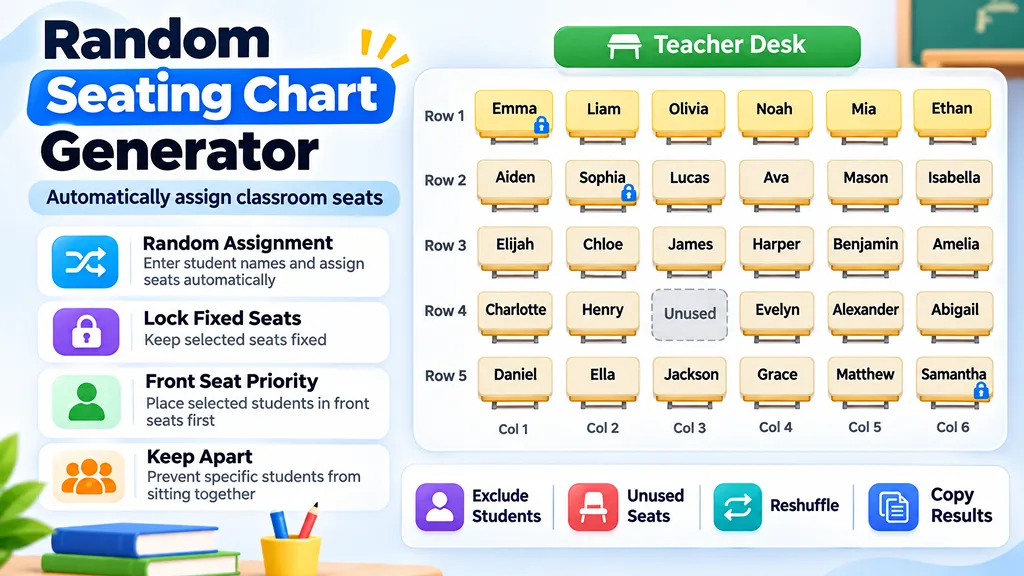
Most teachers need more than a plain shuffle. This tool covers the whole workflow: entering names, generating student numbers, random assignment, locked seats, keeping seats between shuffles, reshuffling, saving an image, and full-screen display.
How to use it
- Type student names, or enter a start number and class size to generate student numbers.
- Enter the number of rows and columns in your room. Row 1 is the row closest to the teacher's desk.
- To place a student in a specific seat, add a line like
Emma=1-1or3=1-1under Locked seats. - To block seats, enter
1-1,row 5,col 1, orR4C6under Seats not used. - If needed, add front-row priority students, absent students, and pairs to keep apart.
- Click Randomize Seats. Locked seats stay in place and everyone else is shuffled.
- When the chart appears, click Full Screen to show it large on the classroom display.
- With Reveal one by one turned on, go full screen and click Start to reveal seats in order from row 1, column 1.
- Copy the chart or save it as an image to share in class announcements, messages, or documents.
Features
- Student numbers: Build a seating chart by number, like #1 to #30, without typing every name.
- Locked seats: Place specific students in chosen rows and columns, then randomize only the rest.
- Keep seats between shuffles: Click a seat in the result to lock it, and reshuffle everyone else.
- Front-row priority: Seat students who need the front for vision, focus, or presentations first.
- Keep apart: List pairs who shouldn't sit side by side or front to back, and the generator works around them.
- Seats not used: Block individual seats, whole rows, or whole columns from a single field.
- Reveal one by one: Reveal the chart seat by seat like a game, moving left to right from row 1, column 1.
- Full-screen view: Hides the stats and tool buttons so the seating chart fills the screen.
- Save as image: Save just the seating chart as a clean PNG, with the date and time in the file name.
Tips for assigning and changing seats
Random seating helps keep things fair, but no shuffle can account for every classroom need. Students with vision needs, those who focus better up front, or those who need to see the board clearly are good candidates for front-row priority. If a student must sit in a particular seat, for example because of an IEP or 504 plan, use Locked seats and randomize everyone else.
Before you finalize the chart, check that empty seats, absent students, unused seats, and locked seats match what you intended. If your room isn't a simple grid or uses table groups, simplify it into rows and columns that match your room as closely as possible.
FAQ
- Q. Can I put a specific student in a specific seat?A. Yes. Enter
Emma=1-1under Locked seats to place Emma in row 1, column 1. Everyone else is seated randomly. - Q. Can I make a seating chart with student numbers instead of names?A. Yes. Choose Use student numbers, then enter a start number and the number of students.
- Q. How do I block seats I don't want to use?A. Enter a single seat as
1-1orR1C1, a whole row asrow 5, and a whole column ascol 1. - Q. In what order are seats revealed one by one?A. From row 1, column 1, moving to the right. When a row is done, it moves on to the next row.
- Q. Can I save the seating chart as an image?A. Yes. Click Save Image to download just the seating chart as a PNG, without the stats and tool buttons.
- Q. What does full screen show?A. Full screen shows the seating chart on its own, without the seated, empty, not used, and locked counts or the tool buttons.
More School calculators & tools