
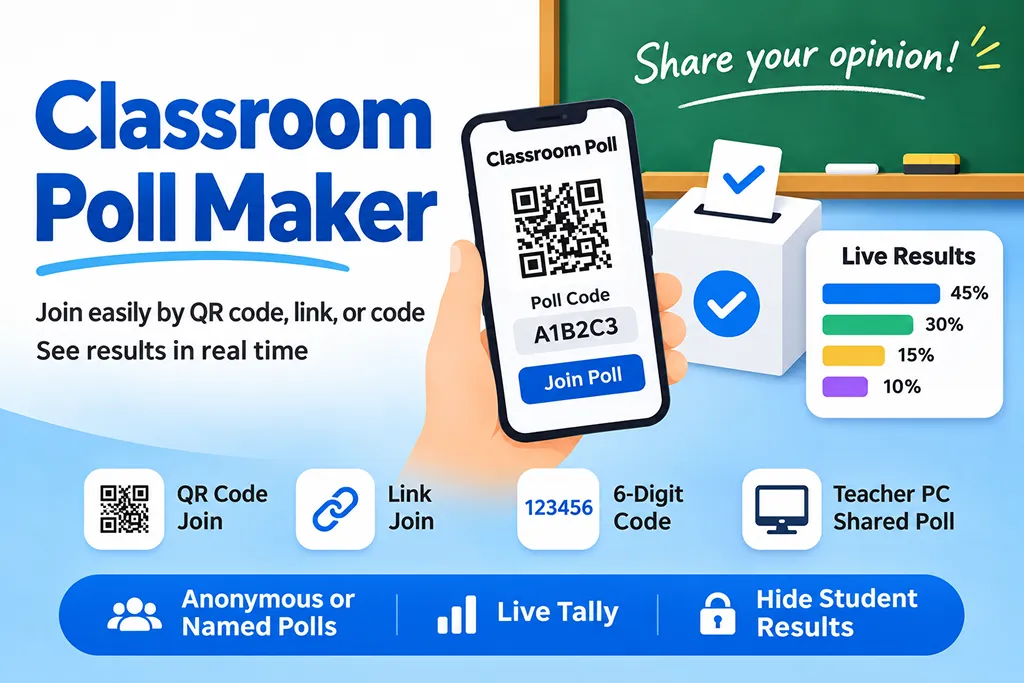
Run quick class polls, quizzes, and opinion checks with a QR code or link, and let students without a phone vote one at a time on the teacher's computer.
Create a Poll
Join with a Code
What is a classroom poll maker?
A classroom poll maker is an online tool that lets teachers create a question with options and quickly collect answers from the whole class. Students join with a QR code, a join link, or a 6-character poll code. Use it for quick opinion checks, yes/no votes, choosing presentation topics, picking a field trip destination, or gathering ideas for class events.
Students do not need their own phone or tablet. If devices are limited, students can take turns voting on the teacher's computer, so you can choose the setup that fits your classroom.
How to create a class poll
Enter a title, a question, and options under Create a Poll, then create the poll. A QR code, poll link, and join code are generated right away. Put the QR code and join code on a projector or interactive whiteboard so students can join.
Students do not need to sign up. They just open the poll and pick an option. While voting is open, you can watch the number of votes and the live results.
Join with a QR code, link, or poll code
Students can join whichever way is easiest. If they have a camera, a QR code poll is the fastest way in. You can also post the join link in your class chat or learning platform. If typing a long address is hard, students can choose [Join with a Code] on the start screen and enter the 6-character code you give them.
Anonymous and named voting
Choose anonymous voting or named voting depending on your goal. Anonymous voting collects answers without showing student names, which works well for checking understanding, satisfaction surveys, or yes/no questions where students should feel free to answer honestly.
With named voting, students enter their name before voting. You can see each student's choice along with the results, which is useful for group sign-ups, role assignments, or any time you need to know who picked what.
Polls with lots of options
You can add anywhere from 2 to 30 options. Beyond simple yes/no votes, it works for class officer elections with many candidates, presentation topics, field trip destinations, or choosing favorite projects.
Too many options can make it hard for students to compare them on one screen, so it helps to combine similar items and keep only the options you need.
Show live results on a projector
Once voting starts, the live results show the total number of votes and how each option is doing. Switch the results to fullscreen to make them easy to read on a projector or interactive whiteboard.
You can sort options by votes so the leading choices move to the top, or hide the vote counts and bars until voting ends so students cannot see the current ranking. The poll code, QR code, and join link can also be shown on the results screen or hidden when you do not need them.
Hide live results from students
Showing the current leader or percentages before voting ends can sway students who have not voted yet. In that case, keep the live results hidden while votingand reveal them after everyone has voted.
For quick in-class polls where watching the results change is part of the activity, you can show the live results and talk about them with your students right away.
Take turns voting on one teacher computer
If students cannot use their own devices, use One-at-a-Time Voting. Start the student voting screen and let students use the computer one by one. Students see only the question and options, never the current results or teacher controls.
The first 9 options can also be picked with the number keys 1 to 9, so voting goes quickly without a mouse. In a named vote, each student enters their name before choosing.
Ways to use a classroom poll
- Check for understanding — Ask a multiple-choice question about today's lesson
- Class opinion survey — Gather ideas on events, seating, or how to run an activity
- Yes/no vote — See who agrees or disagrees on a topic
- Presentation topic vote — Pick one topic or project idea from several
- Field trip vote — See which destination students prefer
- Project and idea vote — Choose favorites from class work or ideas
- Group and role sign-ups — Use a named vote to see what each student wants
Tips for running an online class vote
Before you start, make sure students clearly understand the question and options. Options that mean almost the same thing can split the vote, so keep each option distinct.
Decide whether the vote is anonymous and when to show results based on your goal. Anonymous voting is best when honest opinions matter, and named voting works when you need to see each student's choice. If you do not want students to influence each other, keep the live results hidden until everyone has voted.
Frequently asked questions
- Q. How many students can join a class poll?A. Each round can collect up to 2,000 votes, so up to 2,000 students can take part. The same limit applies to votes on the teacher's computer. If you need more, contact us with the button at the bottom right.
- Q. Can students vote without a smartphone?A. Yes. Students can take turns voting on one teacher computer. The student voting screen hides teacher controls and live results, so it works well for voting in turn.
- Q. Can students join without a QR code?A. Yes. Besides the QR code, students can use the join link or the 6-character poll code. On the start screen, they choose [Join with a Code] and enter the code from their teacher.
- Q. Can I hide the results from students?A. Yes. While voting is open, you can hide the vote counts, percentages, and result bars and show only the total number of votes. Then reveal the results after everyone has voted.
- Q. Can I run an anonymous vote?A. Yes. Choose anonymous voting to count votes without student names. If you need to see each student's choice, choose named voting instead.
More School calculators & tools