What is an online poll maker?
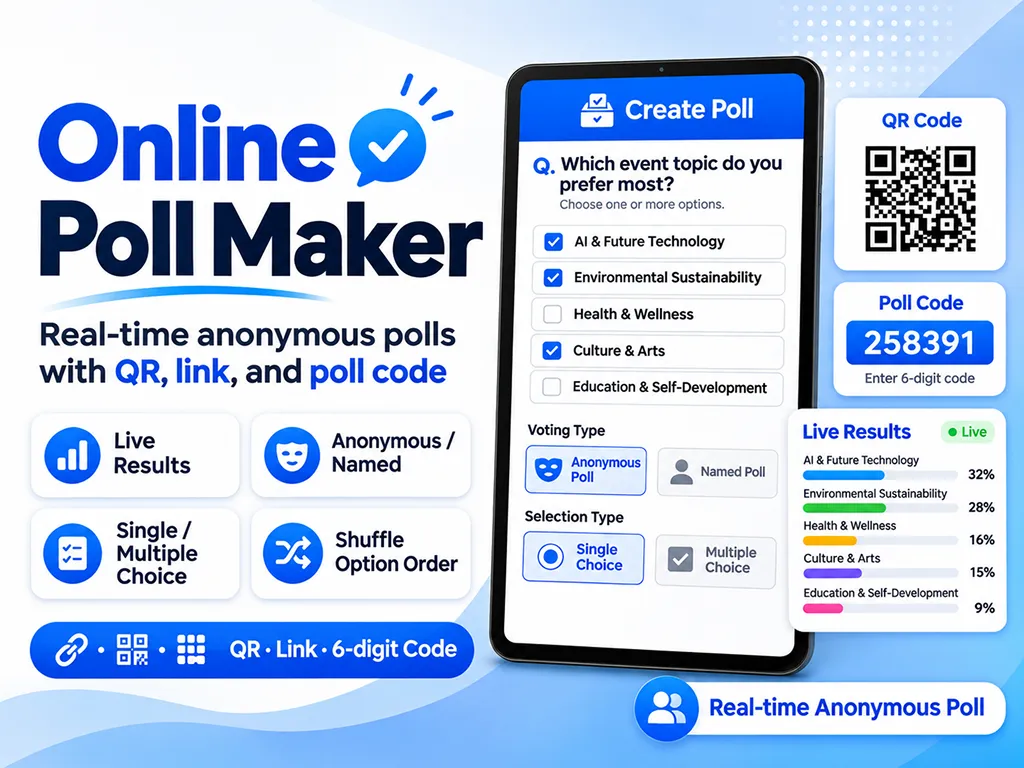
An online poll maker lets you create a question with a few options and collect answers from a group in real time. Participants join by scanning a QR code, opening a link, or typing a short poll code, so it works in meetings, classes, workshops, events, and group chats without installing an app or creating an account.
How to create a poll
- Open [Create a poll] and enter your question and at least two options.
- Choose anonymous or named voting, single or multiple choice, and when results are shown.
- Click [Create poll]. A QR code, join link, and 6-character poll code are created right away.
- Share any of them. Participants vote on their own phone or computer, and you watch the results update live.
Anonymous polls vs. named polls
Use an anonymous poll when you want honest opinions and people should not worry about being identified. Choose [Ask for names] when you need to know who picked what, such as sign-ups or RSVP-style questions. In a named poll, names and choices are shown only on the admin screen.
Single choice vs. multiple choice
Use single choice when the group must pick exactly one answer, such as choosing a winner or a final option. Use multiple choice for preference surveys or availability checks where people can pick several answers, and set the maximum number of picks per person.
In a multiple-choice poll, each percentage is the share of participants who picked that option, so the percentages can add up to more than 100%.
Choose when results are shown
You can show results live, after voting, after the poll closes, or to the admin only. If early results could influence people who have not voted yet, choose [Show after the poll closes]. If watching the numbers change is part of the fun, such as at an event or a live presentation, choose [Show live]. You can change this setting at any time from the admin screen.
Shuffle options to reduce position bias
People tend to pick options near the top of a list. Turn on Shuffle to show the options in a different order for each participant. The admin results still use the original order.
Join with a QR code, link, or poll code
At in-person events, put the QR code on a screen so people can join instantly. In email, Slack, Teams, or a group chat, share the join link. If links are hard to share, just read out the 6-character poll code. Participants enter it under [Join with a code] on this page.
Present live results
The admin screen shows the number of participants and the votes and percentage for each option as they come in. For presentations, you can sort by votes, hide the counts until the reveal, hide the QR code and join info, and switch to fullscreen for a projector, meeting room TV, or shared screen.
Ways to use online polls
- Team meetings: pick a proposal, prioritize tasks, or make a quick decision
- Classes and training: check understanding, run icebreakers, or let the group choose the next topic
- Events and webinars: collect audience opinions in real time
- Friends and family: choose a restaurant, a date, or a movie
- Clubs and communities: vote on activities, schedules, or proposals
- Quick anonymous feedback: get honest answers without asking for names
Tips for a good poll
Keep the question short and clear so it can be understood in one read. Make sure the options do not overlap, or votes may be split between similar answers. For important decisions, show results only after the poll closes, and consider shuffling the options if their order might affect the outcome.
Frequently asked questions
- Q. How many people can vote in one poll?A. Up to 2,000 people can vote in one round. A poll can run up to 20 rounds with [Reset results].
- Q. Do I need an account to create a poll?A. No. Create a poll and you immediately get a QR code, a join link, and a poll code. Participants do not need an account either.
- Q. Can I make an anonymous poll?A. Yes. Choose [Anonymous] and only the choices are counted, without names. Choose [Ask for names] if you need to see who voted for what.
- Q. Can one person pick more than one option?A. Yes. Choose [Multiple choice] and set the maximum number of picks per person.
- Q. Can I hide the results until voting ends?A. Yes. Set the results to [Show after the poll closes] or [Admin only], and participants will not see the results while voting.
- Q. Can the same person vote more than once?A. Each browser can vote once per round. This is not identity verification, so someone could still vote again by clearing browser data or using another browser or device.
- Q. How long does a poll stay open?A. You can keep a poll for 1 hour up to 7 days. After that, the poll and its results are deleted automatically.
- Q. Can I manage the poll from another device?A. Yes. Click [Manage on another device] on the admin screen and open the admin link or scan the QR code on your phone or tablet. Anyone with this link has admin access, so do not share it.